Overview
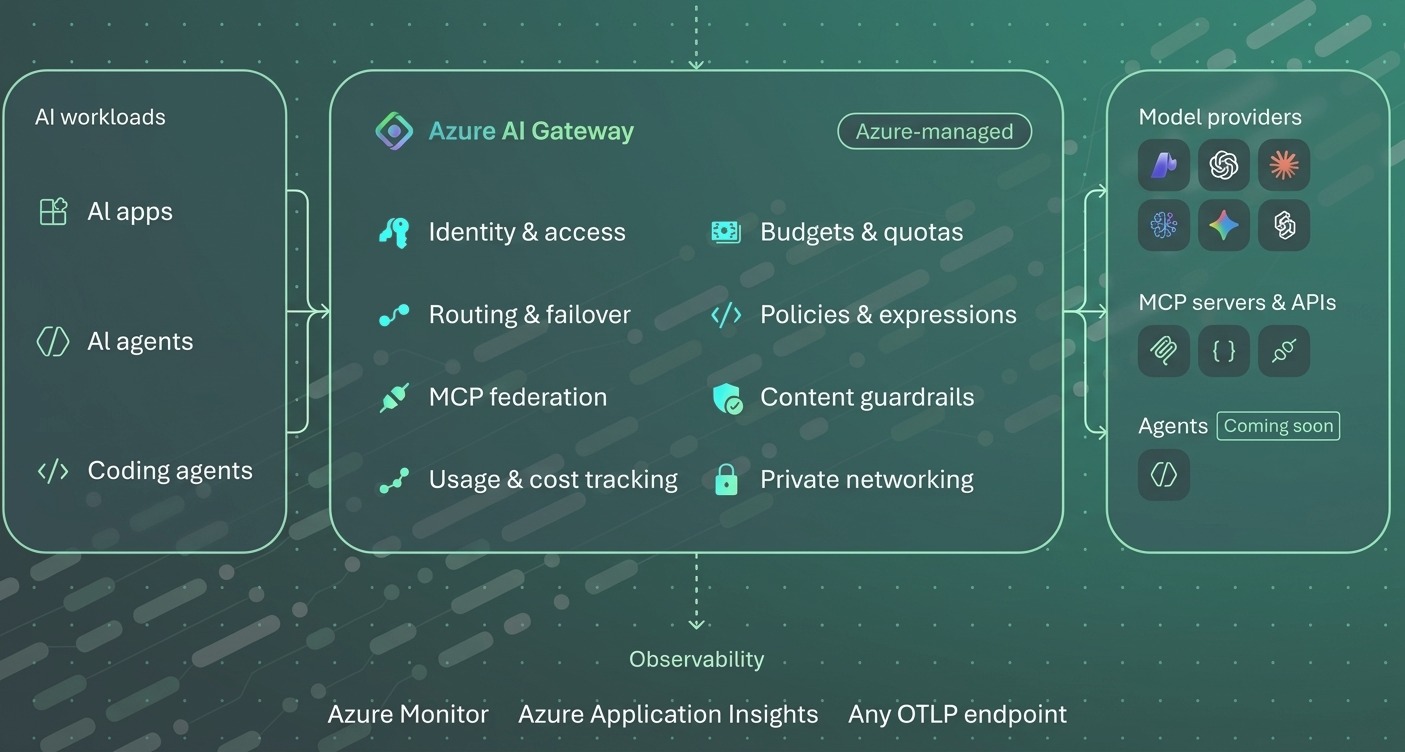
Azure AI Gateway (ai.gateway.azure.com) sits in front of your AI model deployments and adds access control, rate limits, cost tracking, routing, and monitoring, without touching client code. It's a separate Azure product from API Management, currently in public preview and available in East US 2 and Sweden Central. This guide walks through configuring Azure AI Gateway step by step, using a live gateway instance.
Add a Model and Create an Alias
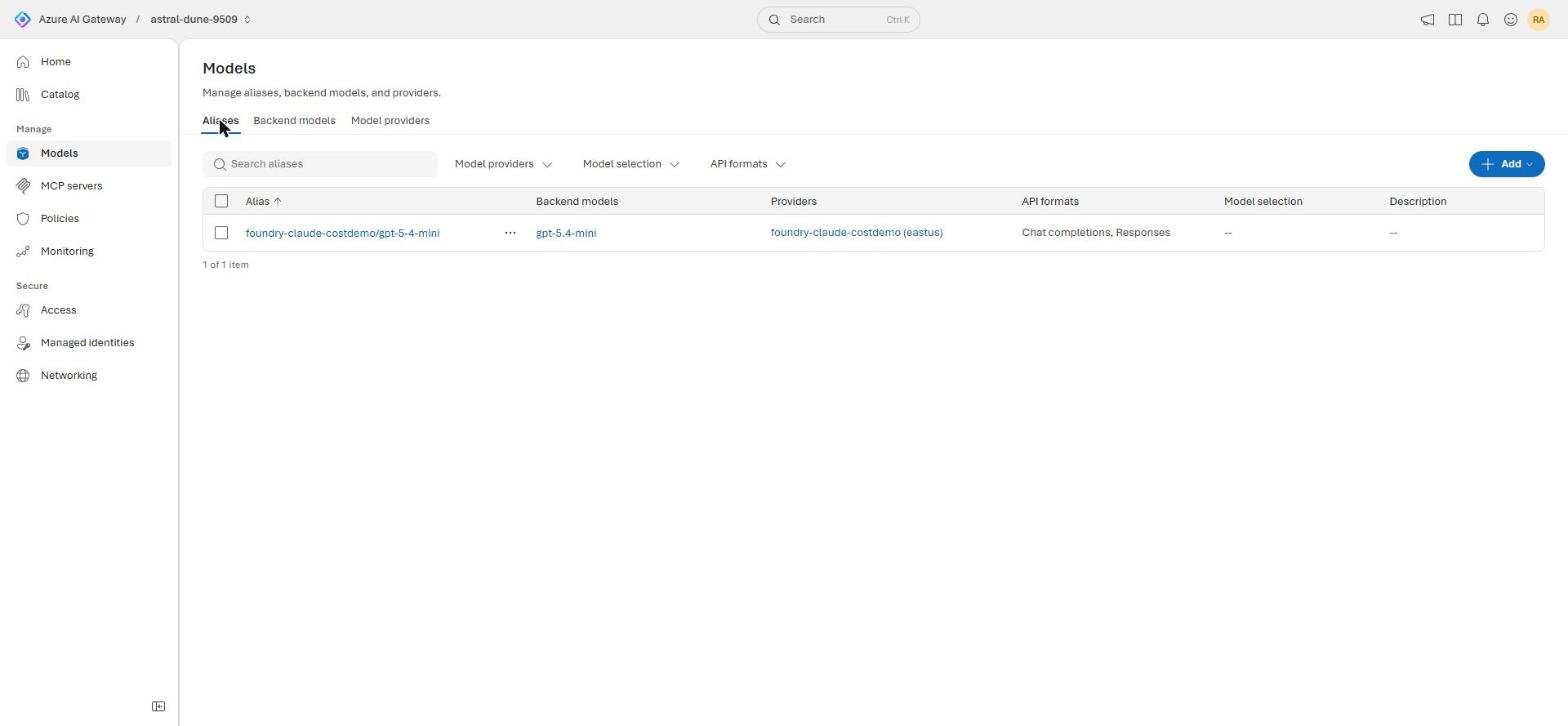
An alias is the stable endpoint your application code calls. It doesn't point at one fixed model: it maps to one or more backend models, which is what makes routing and failover possible later.
To add a model:
- From the gateway's Home page, select Add a model → Add from Microsoft Foundry.
- Pick the subscription and resource group holding your Foundry deployment.
- Choose the authentication method. System-assigned managed identity works out of the box.
- Leave "auto-create alias per model" on, and confirm.
If the wizard finishes with "No aliases yet" and nothing registered, run it again; that resolved itself on a second attempt in this build.
The result is an alias such as foundry-claude-costdemo/gpt-5-4-mini. This demo uses an Azure OpenAI deployment, gpt-5.4-mini, as the backend; a Claude model would be added through this same flow once deployed in Foundry.
Verify: check the gateway's Models screen. Your alias should be listed with its backend model underneath it.
Configure Rate Limits and Cost Limits
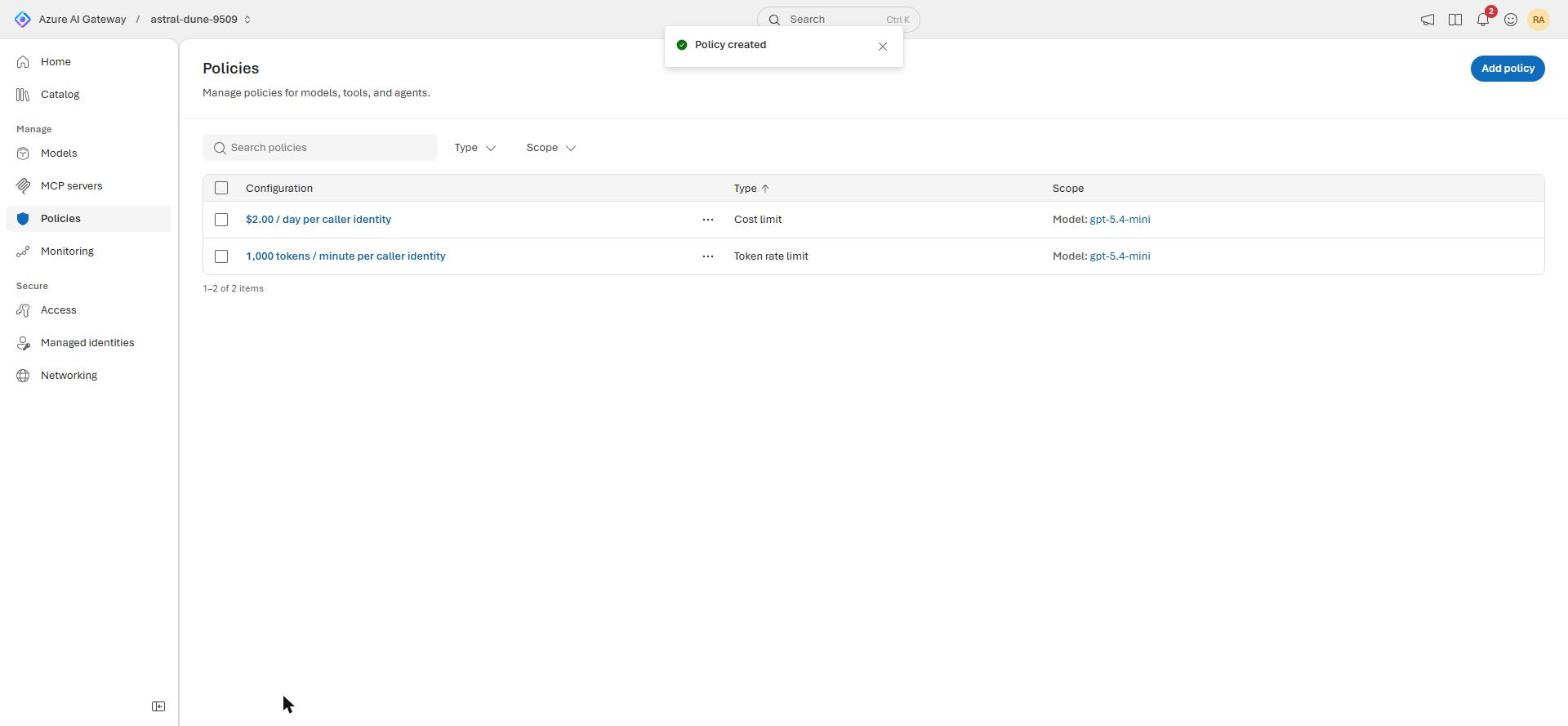
The Policies section has two relevant categories: Security (IP filtering) and Cost and rate limits (token rate limit, cost limit, request rate limit). Here's how to add a token rate limit and a cost limit.
- Open Policies on the alias (or gateway-wide, to apply everywhere).
- Select Add policy, then choose Token rate limit or Cost limit.
- Set the scope to the alias you want it on.
- Enter the limit: tokens per minute for a rate limit, or an amount plus renewal period (daily, weekly) for a cost limit. Cost limits also support per-API-key or per-Entra-identity budget overrides.
- Save.
In this build: a token rate limit of 1,000 tokens/minute and a cost limit of $2/day, both scoped to the gpt-5.4-mini alias. The $2/day came from the subscription's $100/month budget ($100 ÷ 30 ≈ $3.33/day, with $2 left as headroom).
Once applied, every request against that alias is checked against both policies before it reaches the backend. A request that would exceed either gets blocked.
IP filtering, under Security, uses the same wizard: scope it to allowed or denied IP ranges instead of tokens or cost.
Custom implementation note: these policies cover access and consumption. Content-level guardrails (prompt filtering, output moderation, PII redaction) aren't a native policy type here; that needs Azure AI Content Safety or an equivalent service wired in separately.
Verify: the alias's Policies list shows both policies with their configured values. Once traffic flows, Monitoring → Policies shows allowed vs. blocked counts per policy.
Configure Authentication and API Keys
Three things live under Access and Managed identities: Entra role assignment, API keys, and managed identity. These control who can call through the gateway. Changing the gateway's own configuration is a separate permission layer: ordinary Azure RBAC (Contributor/Owner) on the resource.
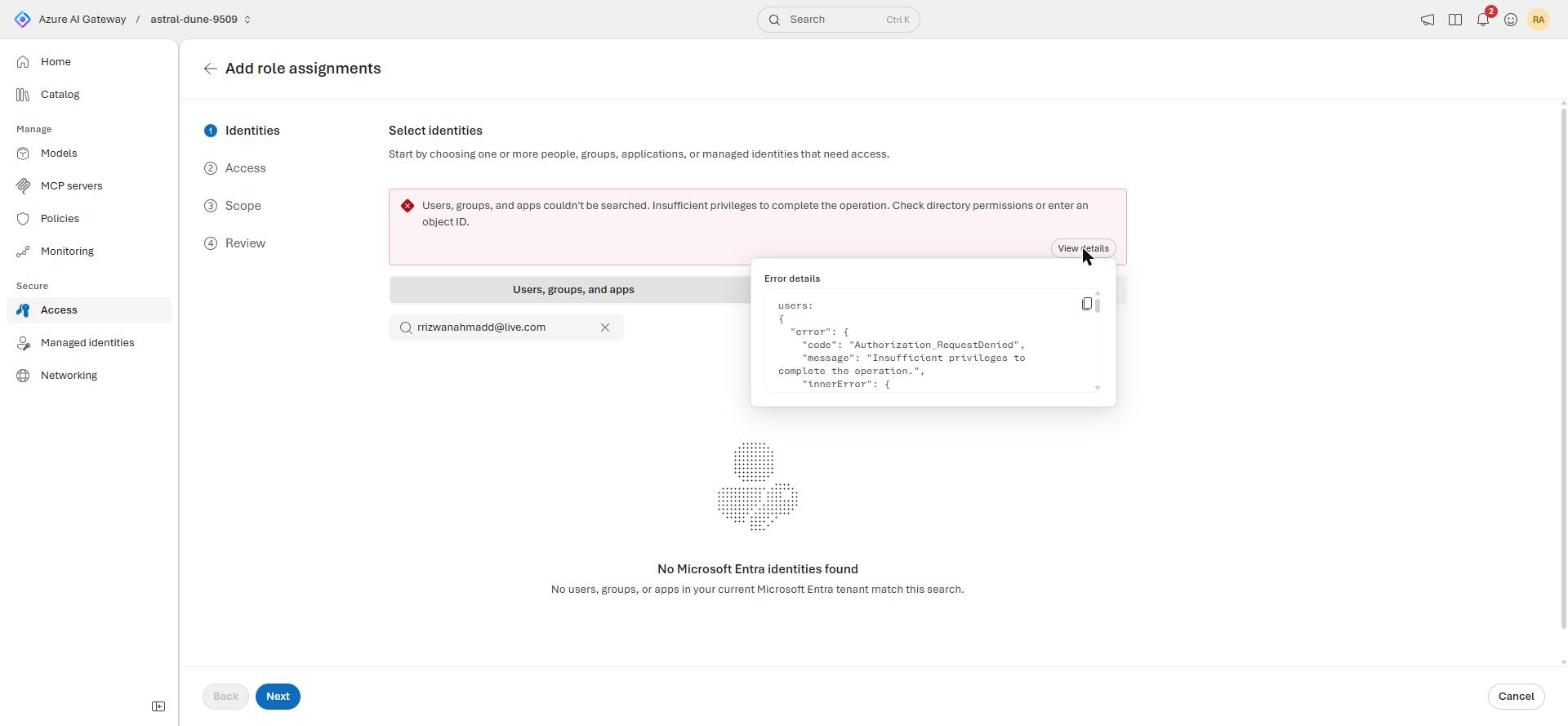
Entra ID role assignment. Go to Access → Managed identities → Configure identities (or the alias's role-assignment screen) and search the tenant directory for the account to grant the AI Gateway Models User role. In this build, that search failed with Authorization_RequestDenied: Insufficient privileges to complete the operation, even when searching for the signed-in account's own address. That's a tenant directory-read permission gap, not a gateway bug: Contributor rights on the resource aren't the same as Entra directory-read rights. A tenant admin has to grant that separately; there's no way around it from inside the gateway.
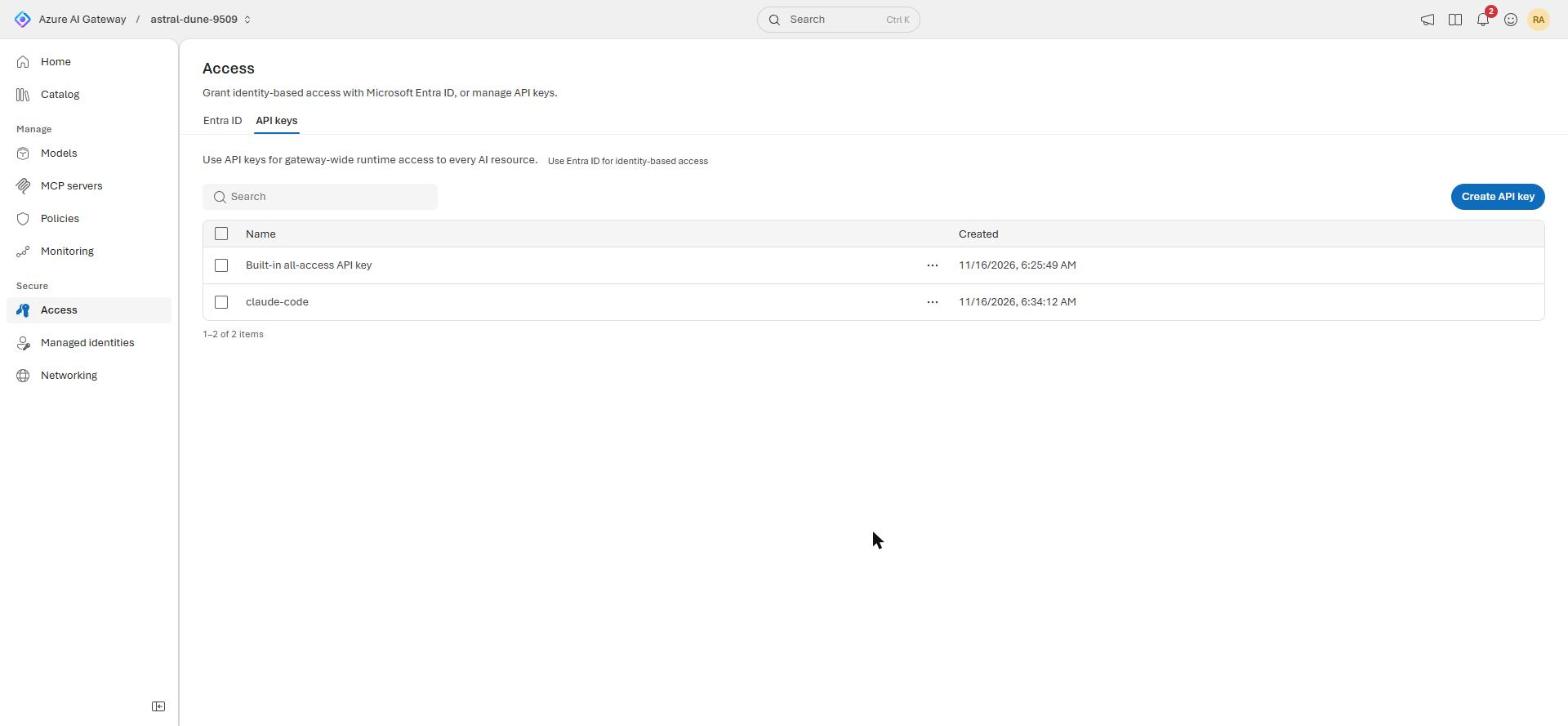
API keys. Go to Access → API keys → Create key, name it, and save. The gateway auto-creates one "Built-in all-access API key" when it's created. A new named key currently gets the same gateway-wide access as that built-in key, and there's no per-key model scoping yet, so a key can't be restricted to one alias.
Verify: the new key shows up in the API keys list immediately. Use it in the request header to the alias endpoint to confirm it works.
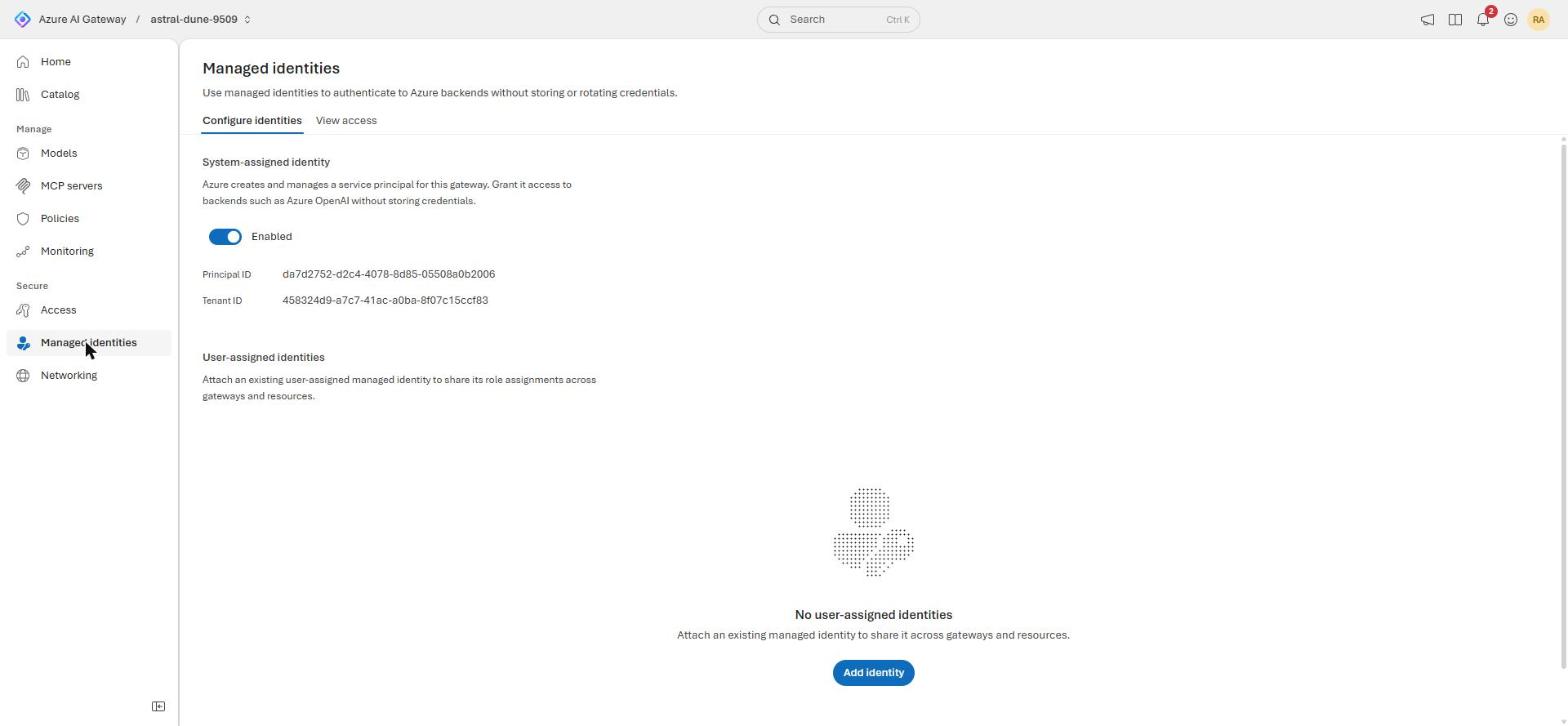
Managed identity. Nothing to configure here. The gateway auto-enables a system-assigned managed identity when it's created. Check it under Managed identities → Configure identities: it should show Enabled, with a Principal ID and Tenant ID. No user-assigned identities are attached by default.
Monitor Token Consumption and View API Logs
Where to go: the gateway's Monitoring section, with tabs for Overview, Models, Tools, Policies, and Traces.
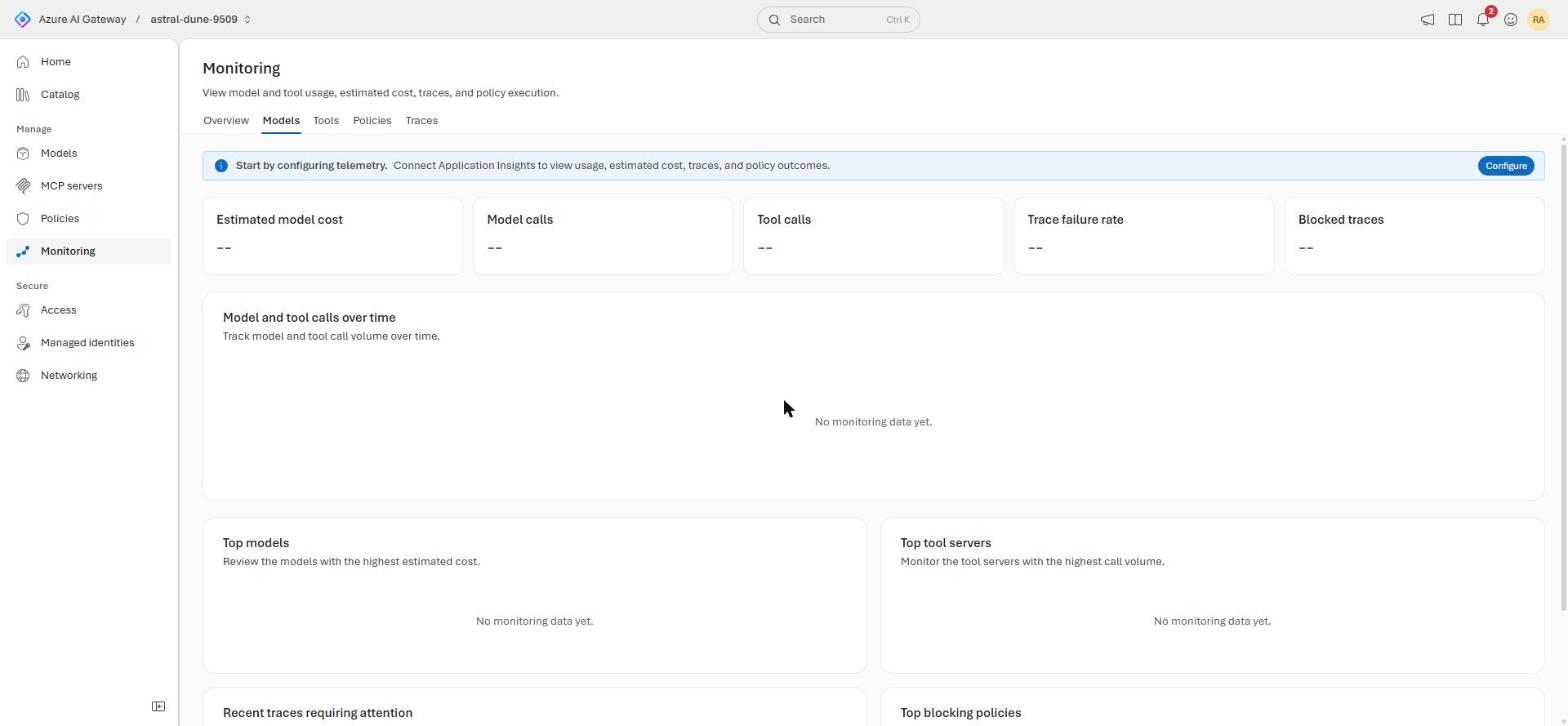
What to click: the first time, hit Configure on the Overview tab and connect an Application Insights resource. Every tab is empty until that's done. There's no "usage by caller identity" panel by that name; that breakdown lives inside the Models and Traces tabs once telemetry is flowing.
Once requests start flowing, the tabs fill in:
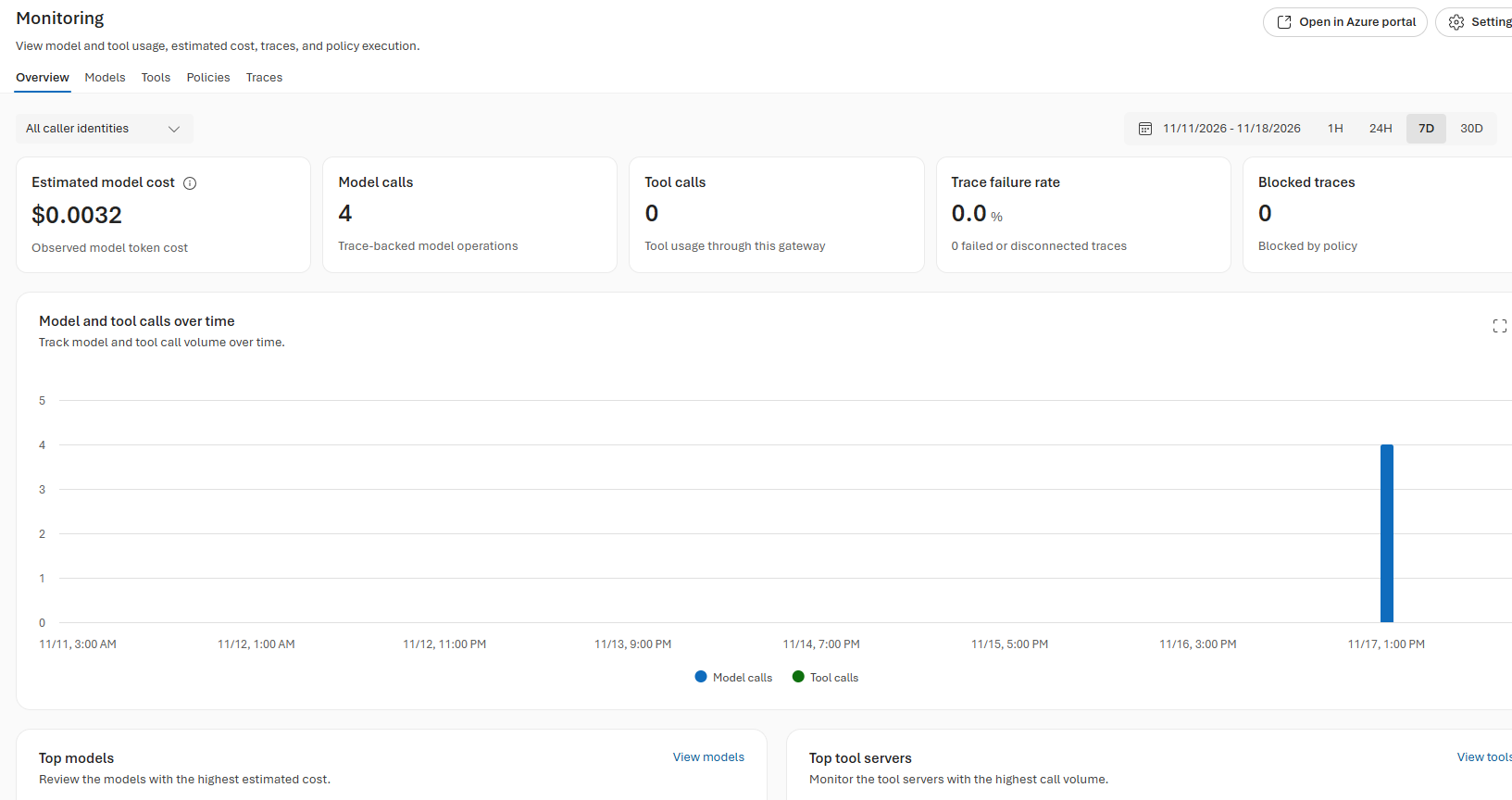
- Overview: estimated cost, total model calls, trace failure rate, blocked traces. In this build: $0.0032 across 4 calls, 0% failures, 0 blocked.
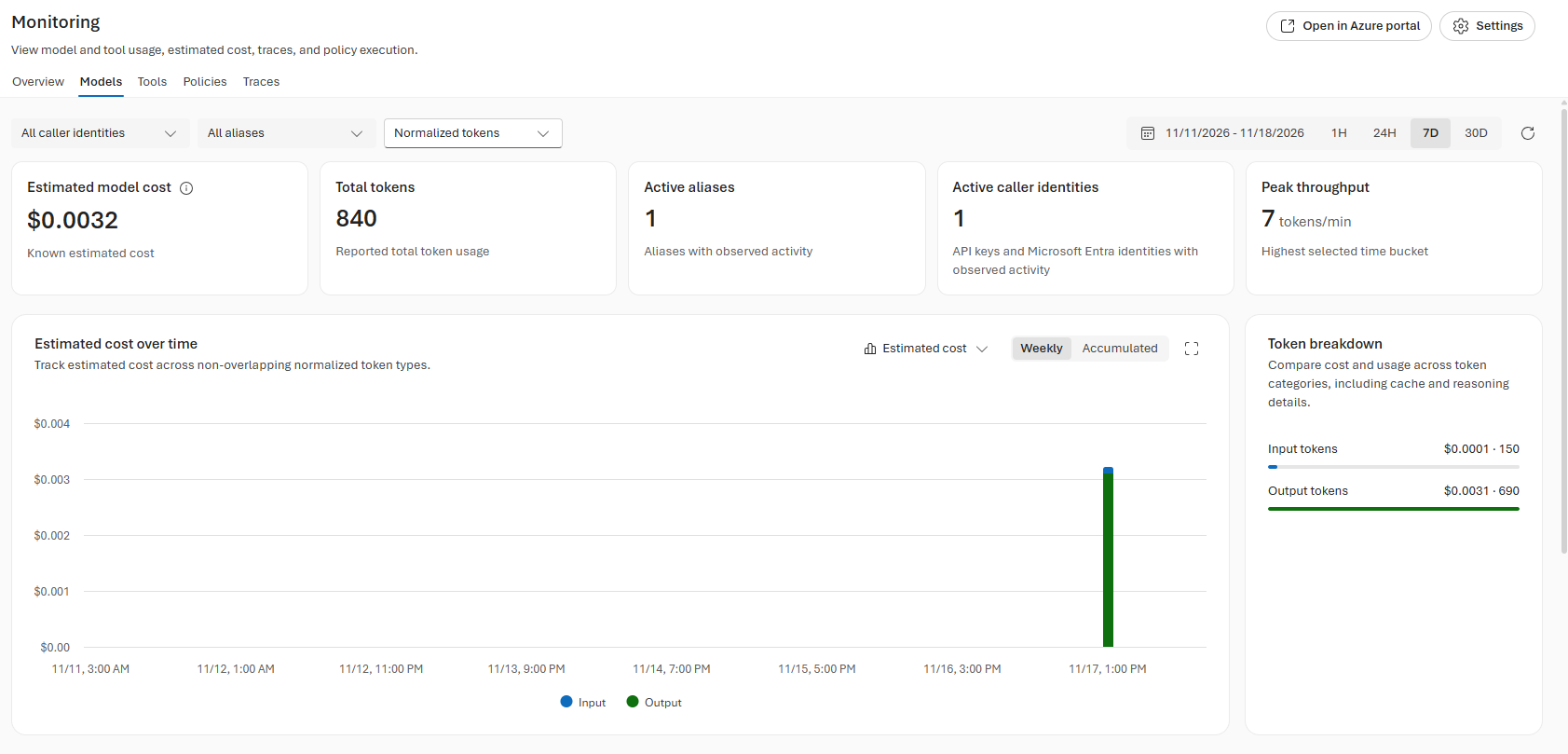
- Models: token totals by input/output cost, active aliases, active caller identities. In this build: 840 total tokens, $0.0001 for 150 input tokens, $0.0031 for 690 output tokens, peak throughput 7 tokens/min.
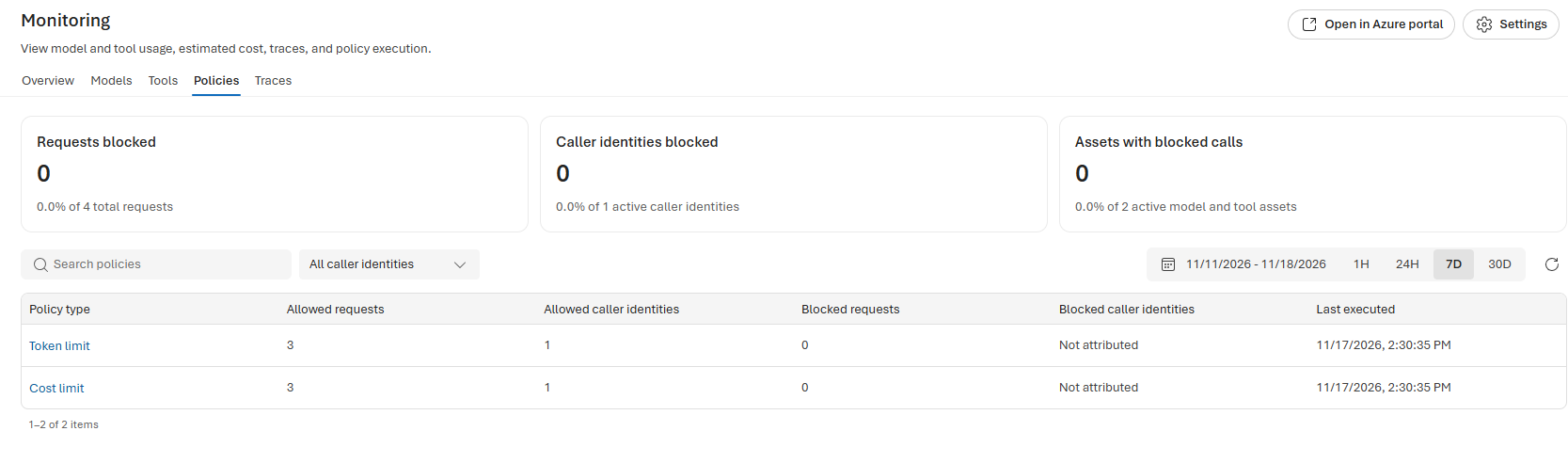
- Policies: each policy's allowed vs. blocked request counts and last-executed time.
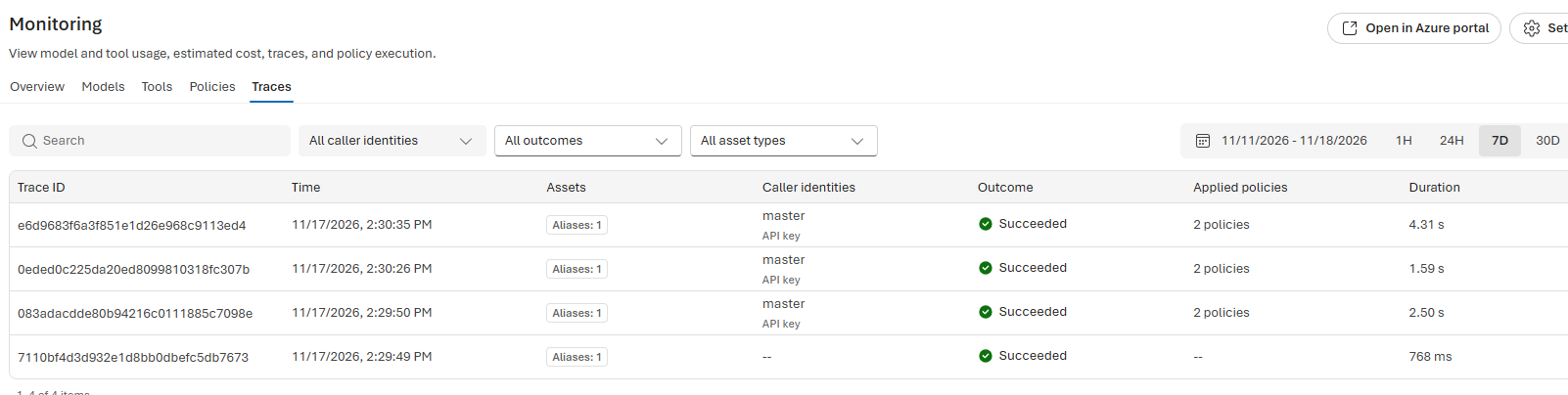
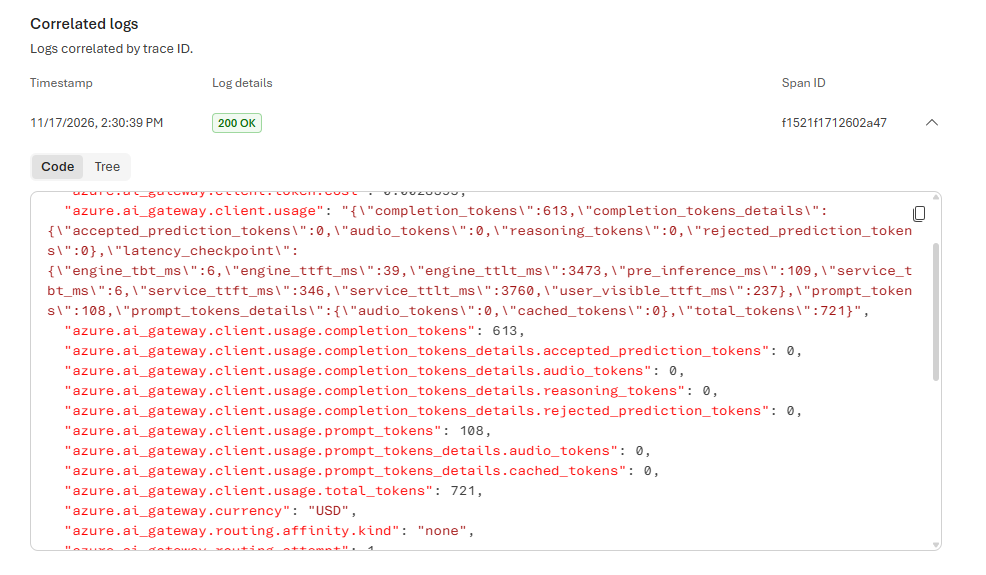
Traces is the most useful tab for debugging. Each trace lists caller identity, applied policies, and duration. Click into one for the full waterfall: inbound → each policy evaluated in order with its exact configuration (type: tokenLimit, count: 1000, period: minute, about 0.1 ms; type: costLimit, amount: 2, period: day, about 0.16 ms) → the backend call → outbound. The backend call dominates latency (4.31 s of a 4.31 s trace here); policy overhead is negligible. Each trace also has a correlated-logs panel with the raw JSON (azure.ai_gateway.client.usage.completion_tokens, per-token-type breakdowns, currency, routing affinity), useful if you're pulling this into your own observability stack.
Configure Model Routing and Failover
Add a second backend model to the alias the same way you added the first: Add a model → Add from Microsoft Foundry. In this build, a second Azure OpenAI deployment, gpt-5-mini, was added with the same limits as the primary: Global Standard, 5,000 TPM / 5 RPM.
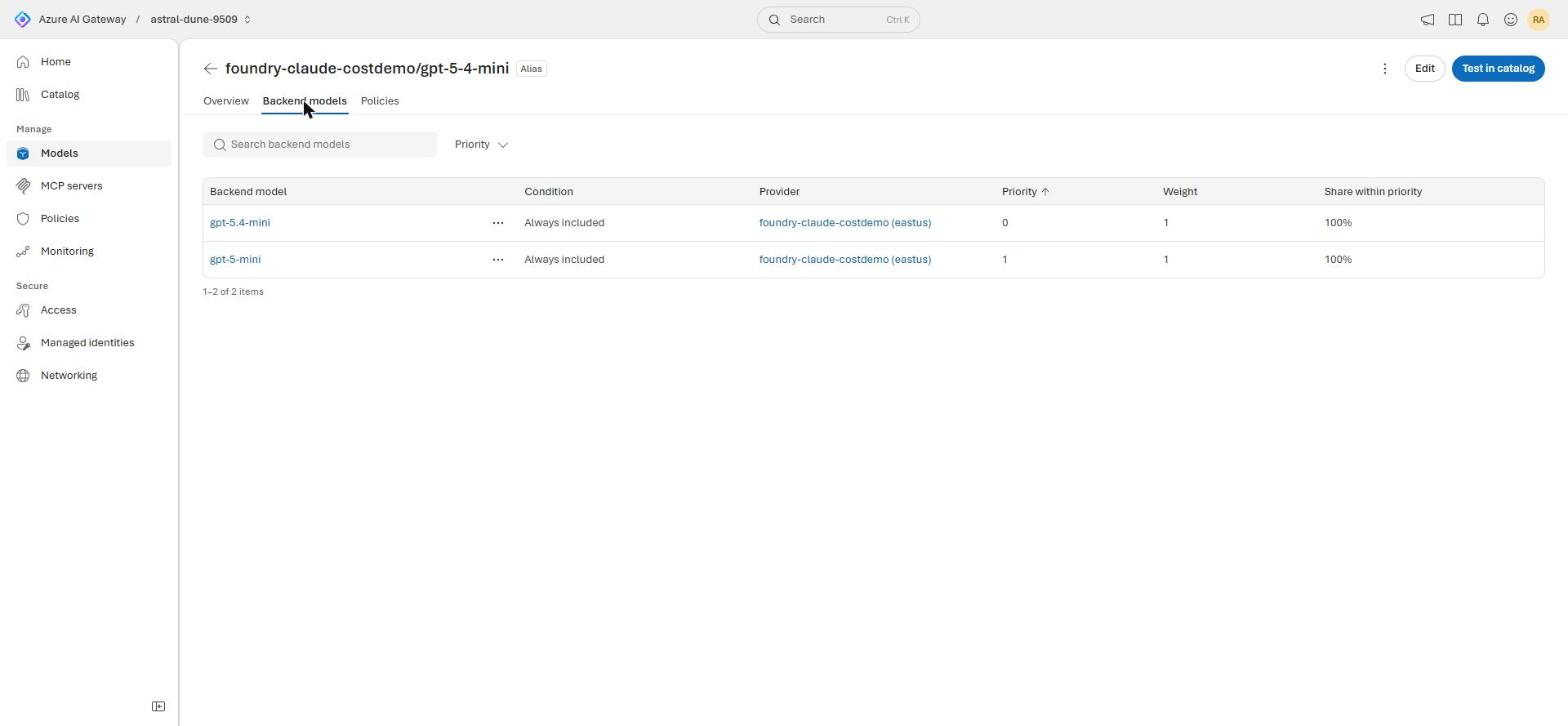
Once an alias has more than one backend, its Edit Alias screen shows a Priorities and weights section. Lower priority numbers serve first; weight splits traffic between backends at the same priority. The final configuration:
| Backend model | Priority | Weight | Share within priority | Role |
|---|---|---|---|---|
| gpt-5.4-mini | 0 | 1 | 100% | Primary |
| gpt-5-mini | 1 | 1 | 100% | Fallback |
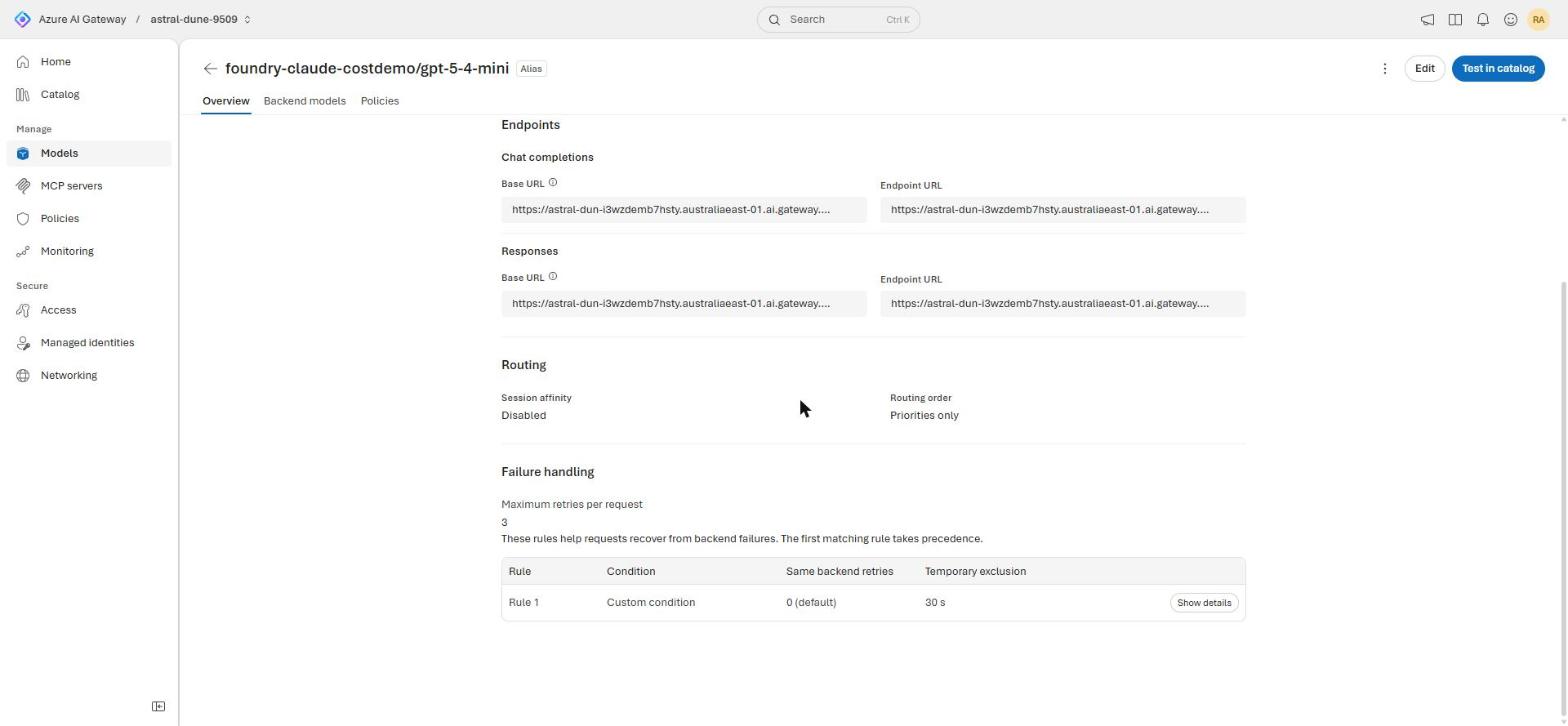
For failover, the Failure handling section lets you set a condition (default: any 4xx/5xx response), how many retries to attempt on the same backend before switching, and an exclusion window to temporarily skip a failed backend. In this build: 0 same-backend retries (switch immediately), a 30-second exclusion window, and a 3-retry cap per request across the alias.
Verify: use the gateway's Test in catalog console to fire a request and see which backend served it, or check the Traces tab in Monitoring. It shows which backend handled each call.
One thing to know if you try to force this yourself: dropping an Azure OpenAI Global Standard deployment's TPM to the Foundry UI's floor didn't reliably trigger a 429 here, across nine consecutive test requests. Global Standard applies TPM/RPM as a soft, dynamic ceiling, not a hard gate. The gateway's own Token rate limit or Request rate limit policy above is the more reliable way to force this path in testing, since it's enforced in front of the backend regardless of how that backend throttles.
References
- Azure AI Gateway portal
- The Economics of Agent Optimization (Azure blog series)
- Claude models billing in Microsoft Foundry
- Manage costs in Microsoft Foundry
- Claude apps gateway (Claude Code)
- Optimizing for cost and intelligence (Claude platform docs)
- Azure API Management — AI Gateway capabilities overview